
06
Nov
2026
Safe Browser for Kids: A Parent’s Guide to Filtering
06/November/2026
Find the right browser for kids: learn how filtering, forced safe search, and no private mode protect children, plus what to look for in a safe browser app.
Table of Contents
- Introduction
- What Is a Browser for Kids and How Does It Work?
- Why Do Children Bypass Parental Controls?
- What Features Make a Safe Browser Hard to Bypass?
- How Do You Protect Kids Beyond the Browser?
- Your Most Common Questions
- Browser Filtering Approaches Compared
- How SPIN Safe Browser Supports Families and Schools
- Practical Tips for Setting Up a Safe Browser
- Summing Up
- Further Reading
Quick Summary
A safe browser for kids is a web browser with built-in content filtering that blocks adult and unsafe sites, forces safe search, and removes private browsing so children can explore the internet on any network. SPIN Safe Browser is a free example for Android and iOS, with desktop extensions for Chrome, Safari and Firefox.
Market Snapshot
- In a UK survey, 91 percent of surveyed parents reported using parental controls or monitoring tools (Information Commissioner’s Office, 2026) [1] .
- In the same survey, 41 percent of surveyed children said they had tried to circumvent parental controls or monitoring tools (Information Commissioner’s Office, 2026) [1] .
- Among the children who tried to circumvent those tools, nearly half (49 percent) said doing so was easy (Information Commissioner’s Office, 2026) [1] .
- About 50 percent of surveyed U.S. teens reported that at least one aspect of their online activities sometimes or often disrupted their sleep during the previous four weeks (Stanford Medicine, 2026) [2] .
Introduction
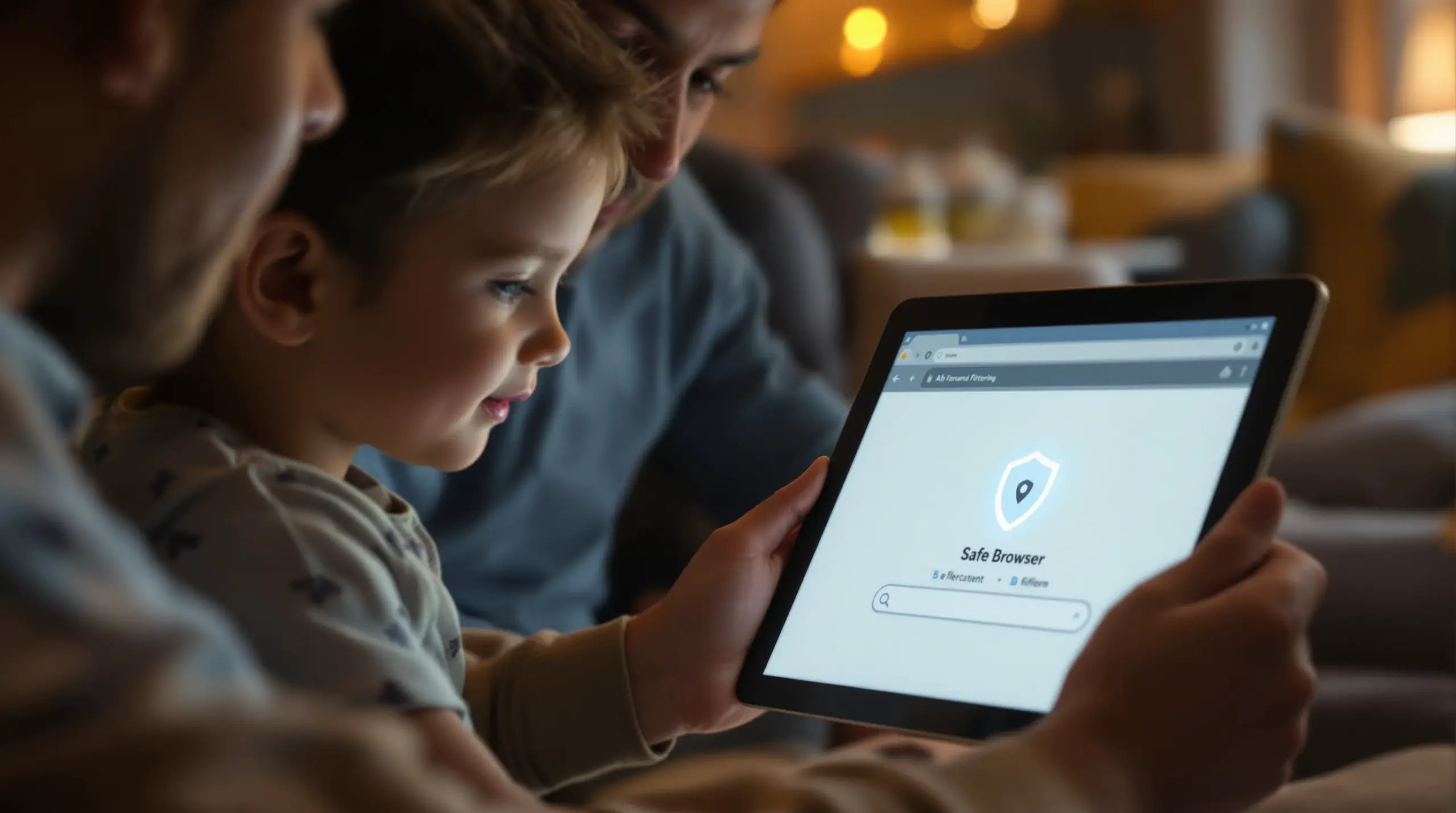
Browser for kids tools give parents a practical way to keep the internet useful and safe, because a filtered browser blocks adult and unsafe websites before a child ever sees them. We built SPIN Safe Browser for exactly this job. It is free to download on Android and iOS, and it comes with extensions for Chrome, Safari and Firefox on desktop computers.
Parents in the United States and Canada face the same moment whenever a child gets a first phone or tablet. A standard browser can search anything, and many filters stop working when a child switches networks, opens a private tab, or installs a VPN app. The gap between having a tool and having a tool that holds up is the gap this guide helps you close.
Below, we explain how a kid-safe browser works, why children try to bypass controls, which features matter most, and how to protect kids beyond the browser. You will also find a comparison of filtering approaches, answers to common questions, and practical setup tips you can use today.
What Is a Browser for Kids and How Does It Work?
A browser for kids is a web browser that filters adult and unsafe content before it reaches a child’s screen. Instead of asking a child to avoid bad sites, the browser itself decides which pages load. Families also call this kind of tool a kid-safe browser, a child-friendly web browser, or a web browser for children.
SPIN Safe Browser applies this idea with automatic blocking of categories such as pornography and adult content, nudity, unsafe search engines, file sharing and peer-to-peer sites, VPN and proxy sites, and sites prone to bad content. The filter runs inside the browser, so protection works on home Wi-Fi, school Wi-Fi, and mobile data. No VPN is involved, and no sign-up or account is needed. The Boomerang website also offers a SPIN your family’s safe web browser overview for parents.
Filtering inside the browser versus filtering the network
Filtering inside the browser protects a child on every network, while router or DNS filtering protects only the network where it is set up. A child who moves from home Wi-Fi to mobile data or a friend’s Wi-Fi leaves a network filter behind. A browser filter travels with the device, which is why SPIN Safe Browser does its work in the browser and not through a VPN connection.
How a browser for kids handles grey-area content
A browser for kids handles grey-area content by blocking pages on otherwise normal websites that are prone to inappropriate material. Many filters block only sites that are entirely bad. SPIN Safe Browser goes further and also blocks individual pages prone to inappropriate content, which gives children room to use everyday sites without stumbling into the worst of them.
Safe search adds another layer of protection. SPIN Safe Browser forces strict safe search on Google, DuckDuckGo, Ecosia and Bing, and it holds YouTube in Restricted Mode on youtube.com. The browser is built on Mozilla Firefox technology and is open source, and it is not affiliated with Mozilla.
Why Do Children Bypass Parental Controls?
Children bypass parental controls because workarounds are easy to find and easy to use. A 2026 Information Commissioner’s Office survey in the UK found that 41 percent of surveyed children said they had tried to circumvent parental controls or monitoring tools, and nearly half of those children (49 percent) said doing so was easy (Information Commissioner’s Office, 2026) [1] .
The 2026 Information Commissioner’s Office survey also found that 52 percent of surveyed children said they would find a way to bypass age checks if they wanted to access a platform or service (Information Commissioner’s Office, 2026) [1] . Parents are not ignoring the issue, since 91 percent of surveyed parents reported using parental controls or monitoring tools (Information Commissioner’s Office, 2026) [1] . The challenge is choosing a tool that holds up once a child decides to test it.
Ernest Doku, a technology expert at Uswitch, pointed to VPNs as a loophole: “VPNs can undo parental controls in seconds, often without parents even realising it’s possible.” (HuffPost UK, 2026) [3]
Common workarounds and how a safe browser closes them
Private browsing tabs, alternative browsers, VPN apps and proxy websites are four workarounds that defeat a basic filter. A browser for kids closes each route in a different way. SPIN Safe Browser has no incognito or private browsing mode, blocks VPN and proxy sites as a category, and filters inside the browser, so no VPN connection exists for a child to switch off.
Alternative browsers remain the open door. A filtered browser works best when you set it as the default browser and use device settings to limit new app installs, so another unfiltered browser cannot take its place.
Filters also fail quietly. When a child bypasses a tool, parents get no signal that anything changed, which is why a design that removes loopholes beats one that depends on a child’s cooperation. SPIN Safe Browser takes that approach by removing private browsing entirely instead of asking children not to use it.
What Features Make a Safe Browser Hard to Bypass?
A safe browser for children is hard to bypass when it combines automatic category blocking, forced safe search, and no private browsing mode in a single app. Each feature removes one decision from a child’s hands, and together they remove the easiest routes to explicit content.
Automatic blocking comes first. SPIN Safe Browser starts filtering the moment you open it, with no account and no configuration, so busy parents can protect a device in minutes. Forced safe search and YouTube Restricted Mode come next, because search results and video are everyday places where explicit material appears.
No incognito mode comes third. SPIN Safe Browser removes private browsing, and it blocks VPN and proxy sites, so every page a child visits passes through the same filter.
Passcode protection and custom lists add control for families that want it. SPIN+ is an optional subscription that adds allow lists, block lists, extra content categories and passcode protection. It is sold monthly or yearly through the App Store and Google Play, and each subscription includes a trial. Filtering itself never requires a subscription, and pornography and nudity domains cannot be allowed, even with SPIN+.
Choosing a browser for kids by age and device
Younger children do best with a short list of approved sites, while teenagers do best with default filtering plus open conversation. With SPIN+ on an Android or iOS device, parents can allow specific sites for younger children. Teenagers can start with the default filter, which needs no setup.
Device type matters too. SPIN Safe Browser runs as an app on Android and iOS. On desktop, SPIN extensions for Chrome, Safari and Firefox bring filtering and forced safe search to the browser you already use. Android families who prefer to keep Google Chrome can look at Web Filter for Chrome, a separate companion that applies SPIN filtering inside Chrome and adds app controls.
Schools and organizations with managed devices have their own option. SPIN Safe Browser Enterprise is built for iPadOS and iOS and is configured through AppConfig, so IT teams can set content filters, blocked sites, allowed sites, bookmarks, a homepage and new tab behavior without student logins.
How Do You Protect Kids Beyond the Browser?
Protecting kids online takes a filtered browser plus regular conversations, because no single tool covers every risk. The Information Commissioner’s Office, the UK data-protection authority, put it this way: “The findings suggest that setting parental controls is an important step, but not a substitute for regular check-ins.” (Information Commissioner’s Office, 2026) [1]
Online risk goes beyond explicit sites. In a 2026 Stanford Medicine survey of U.S. teens, 16.4 percent reported experiencing online harassment and 18.5 percent reported experiencing offline harassment during the previous four weeks (Stanford Medicine, 2026) [2] . The Stanford Medicine research team summed up the pattern: “Some forms of harm occur about as often online and offline.” (Stanford Medicine, 2026) [2]
Sleep and screen time belong in the conversation too. About 50 percent of surveyed U.S. teens reported that at least one aspect of their online activities sometimes or often disrupted their sleep during the previous four weeks (Stanford Medicine, 2026) [2] , and children ages 8 and younger spent an average of about 2.5 hours per day on screens in 2024 (North Dakota State University Extension, 2026) [4] .
What a filtered browser does and does not do
A browser for kids controls what a child can open, not how long a child spends on a device. SPIN Safe Browser is a filtered browser, so it does not include screen-time limits or location tools. Families who want those features can look at Boomerang Parental Control, a separate product for screen time, app controls, location and smartphone safety.
Talk about the filter openly. Tell your child what the browser blocks and why, and invite them to tell you when a site is blocked by mistake. Our team accepts reports of wrongly blocked or missed sites through the website reporting option, which keeps the filter useful as your child grows.
For teenagers, the goal shifts from blocking everything to building judgment. A filter that stays on by default gives teens a safe starting point while the conversation about what they see online continues.
Your Most Common Questions
What is the best browser for kids?
The best browser for kids filters adult content automatically, forces safe search, removes private browsing, and works on every network without a VPN. SPIN Safe Browser meets those criteria on Android and iOS and is free to download and use. Beyond the feature list, look for a browser that needs no sign-up, supports a passcode for settings, and lets you report sites that were blocked or missed by mistake. Pair the browser with device settings that limit new app installs, so another unfiltered browser cannot replace it.
Is SPIN Safe Browser free for kids to use?
Yes, SPIN Safe Browser is free to download and use on Android and iOS, and the optional SPIN+ subscription adds extra controls. SPIN Safe Browser needs no sign-up or account, and the free version does not expire. SPIN+ adds allow lists, block lists, extra content categories and passcode protection, with monthly and yearly options and a trial period with each subscription. Pricing appears on the App Store and Google Play listings, so check there for current amounts.
Can kids get around a safe browser with incognito mode or a VPN?
SPIN Safe Browser has no incognito or private browsing mode and blocks VPN and proxy sites as a category, which closes those common workarounds. Children who want to bypass controls try several routes, and 41 percent of surveyed children in a 2026 UK survey said they had tried to circumvent parental controls or monitoring tools (Information Commissioner’s Office, 2026) [1] . The remaining gap is a second browser, so set SPIN Safe Browser as the default and limit app installs in your device settings.
Does a browser for kids work on a phone, tablet, and computer?
Yes, SPIN Safe Browser runs as an app on Android and iOS devices, and extensions for Chrome, Safari and Firefox cover desktop computers. The filter works on home Wi-Fi, school Wi-Fi, and mobile data because it runs inside the browser and not through a VPN. The desktop extensions bring filtering and forced safe search to the browsers you already use. Schools with managed iPadOS and iOS devices can use SPIN Safe Browser Enterprise, which is configured through AppConfig with MDM platforms such as Jamf Pro and Jamf School.
Browser Filtering Approaches Compared
Browser filtering approaches differ in where they apply protection and how much setup they need. Comparing four common options shows why many families choose a filter that lives inside the browser and then add other safeguards around it.
| Approach | Where protection applies | Setup effort | Gap to close | Fit as a browser for kids |
|---|---|---|---|---|
| Filtered browser app such as SPIN Safe Browser | Inside the browser, on Wi-Fi and mobile data | Install the app; no account needed | Another installed browser stays available unless installs are limited | Strong fit for phones and tablets |
| Browser extension for Chrome, Safari or Firefox | Inside the desktop browser where the extension is installed | Add the extension to the browser | Other browsers on the same computer stay unfiltered | Good fit for family computers |
| Router or DNS filtering | Only on the network where it is configured | Change router or network settings | Protection ends when a child switches to another network, such as mobile data | Partial fit for home use |
| Device settings alone | Depends on the device and operating system | Configure each device separately | Coverage differs by platform, and settings need a passcode to stay in place | Varies by device |
How SPIN Safe Browser Supports Families and Schools
SPIN Safe Browser is a free browser for kids, teens and adults who want filtering that works without setup. National Education Technologies Inc., based in British Columbia, Canada, owns and operates it, and over 1.5 million people trust SPIN, according to our home page.
Our products cover the places families browse. SPIN Safe Browser runs on Android and iOS, SPIN extensions cover Chrome, Safari and Firefox on desktop, and the optional SPIN+ subscription adds allow lists, block lists, extra content categories and passcode protection. Schools and organizations with managed iPadOS and iOS devices can use SPIN Safe Browser Enterprise, which works with Jamf Pro and Jamf School through AppConfig and is bought once through Apple Business Manager or Apple School Manager, with an education discount.
AirDroid’s review of kid-safe browsers rated SPIN Safe Browser 5 stars as a simple, plug-and-play browser with no configuration required (AirDroid) [5] .
“Finally, a Filter That Can’t Be Easily Bypassed: Most filter apps are useless because kids figure out how to bypass them in five minutes using alternative browsers or VPN tricks. SPIN drops proxy domain traffic, blocks extension add-ons, and prevents incognito browsing completely. It’s the first web filter that actually holds up.” – 5 Stars – iOS App Store review
“No VPN Battery Drain!: Most filtering apps force you to run a constant local VPN that destroys your battery life and slows down web pages. SPIN filters everything directly inside the browser engine. Pages load instantly, battery life stays normal, and strict SafeSearch is always forced on Google and Bing.” – 5 Stars – Google Play review
Visit Web Filter for iOS, Android & Schools | SPIN Safe Browser to download the app for your child’s device, or email support@nationaledtech.com with questions.
Practical Tips for Setting Up a Safe Browser
Setting up a browser for kids takes about the same effort as installing any app, and a few habits make the protection last. Use these tips when you prepare your child’s device.
- Set SPIN Safe Browser as the default browser on your child’s phone or tablet, so links from messages and apps open in a filtered environment.
- Limit new app installs in your device settings, so a child cannot add another unfiltered browser.
- Choose a device passcode your child does not know, and use SPIN+ passcode protection if you want browser settings locked.
- Use a SPIN+ allow list for younger children, so they visit only the sites you approve.
- Install the SPIN extension on the family computer for Chrome, Safari or Firefox, and restrict other browsers on that computer.
- Schedule a regular check-in with your child about what they see online, since parental controls are not a substitute for conversation.
Review your browser settings whenever your child gets a new device or reaches a new age. A setup that fits an eight-year-old needs adjusting for a teenager who is learning to manage their own time online.
Adults who want to manage their own browsing can use the same app. The built-in filter and the missing private browsing mode create a helpful barrier during moments of weakness, which supports self-accountability and digital wellness.
Summing Up
Browser for kids tools work best when the filter lives inside the browser, removes common loopholes, and runs on every network. SPIN Safe Browser offers automatic blocking of adult content, forced safe search, YouTube Restricted Mode, and no private browsing mode, free on Android and iOS. Pair it with device settings that limit app installs, and keep talking with your child about what they see online.
Ready to start? Download SPIN Safe Browser from the App Store or Google Play, or email our support team at support@nationaledtech.com. Setting up a safe browser for kids today gives your family a protected starting point on every device.
Further Reading
- New research reveals growing gap between parental confidence and children’s digital reality. Information Commissioner’s Office.
https://ico.org.uk/about-the-ico/media-centre/news-and-blogs/2026/08/new-research-reveals-growing-gap-between-parental-confidence-and-children-s-digital-reality/ - Online harms and teens: Five things to know. Stanford Medicine.
https://med.stanford.edu/news/insights/2026/09/online-harms-teens.html - How To Stop Kids Bypassing Parental Controls On Phones. HuffPost UK.
https://www.huffingtonpost.co.uk/entry/kids-bypassing-parental-controls_uk_6a203fd2e4b0ba317304eb05 - NDSU Extension fact sheet FS2294. North Dakota State University Extension.
https://www.ndsu.edu/agriculture/sites/default/files/2026-04/fs2294.pdf - AirDroid review of kid-safe browsers. AirDroid.
https://www.airdroid.com/online-safety/kid-safe-browsers-comprehensive-review/