
05
Oct
2026
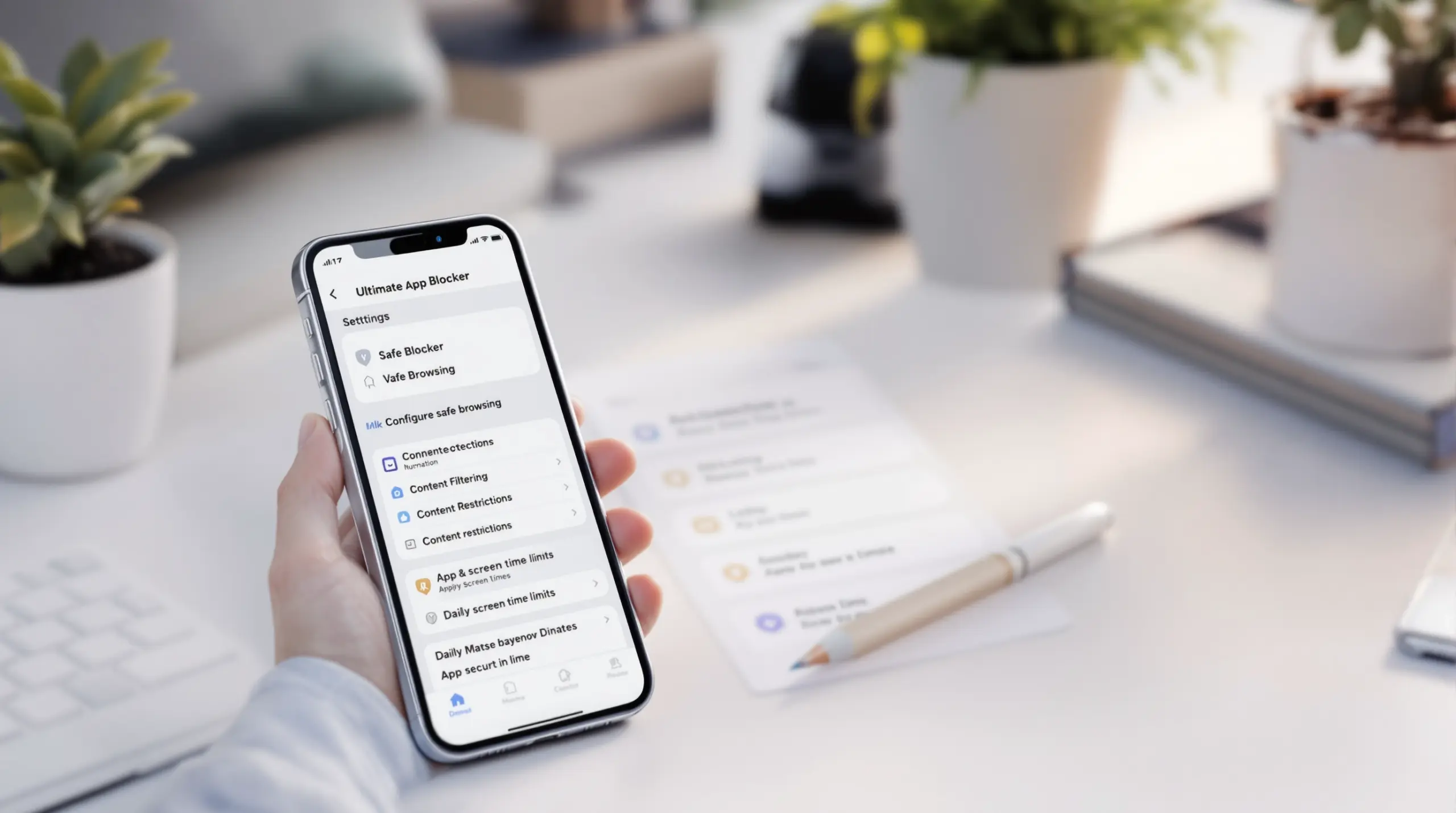
Ultimate App Blocker for iPhone Setup Guide
05/October/2026
Find the right app blocker for iPhone to protect your kids. Learn how to restrict downloads, filter explicit web content, and enforce daily screen time limits.
Table of Contents
- Introduction
- What Is an App Blocker for iPhone?
- How Does iOS Screen Time Compare to Dedicated Filters?
- Why Web Filtering Matters Beyond App Blocking
- Managing Digital Wellness and Screen Time Limits
- Questions from Our Readers
- App Blocker Methods Compared
- How SPIN Safe Browser Enhances iPhone Safety
- How to Secure Your iPhone in 4 Steps
- Before You Go
- Useful Resources
Quick Summary
App blocker software for iPhone is a digital wellness tool that restricts application downloads, limits screen time, and filters explicit web content on Apple devices. Parents use these controls to shield children from inappropriate media, while adults use them to maintain personal accountability and reduce digital distractions.
App Blocker for iPhone in Context
- A 2026 California Assembly background paper defines app approval and blocking as controls that require parental permission before an app is downloaded (California State Assembly Committee on Privacy and Consumer Protection, 2026) [1] .
- The Federal Trade Commission recommends starting with built-in parental-control tools that set screen-time limits, restrict apps and content, and provide information about a child’s website and app activity (Federal Trade Commission, 2026) [2] .
- A peer-reviewed review found that iOS Screen Time had moderate to strong evidence of effectiveness for reducing mobile-phone use in the primary studies it examined (JMIR mHealth and uHealth, 2023) [3] .
Introduction
Managing screen time and online safety is a top priority for modern families managing an increasingly complex digital environment. Finding a reliable app blocker for iPhone helps parents restrict downloads, limit daily usage, and filter mature content effectively. While Apple provides native tools to manage device access, SPIN Safe Browser offers a dedicated safe browsing environment that blocks explicit websites automatically without requiring complex network setups. This comprehensive guide explores how to combine native iOS restrictions with dedicated web filters to create a secure, distraction-free digital space for your children and yourself. We will cover native settings, third-party solutions, and best practices for supporting long-term digital wellness in your household. Whether you are protecting a young child from inappropriate media or seeking personal accountability tools, understanding the full spectrum of mobile security is important for peace of mind.
What Is an App Blocker for iPhone?
An iPhone app blocker is a software tool or native setting that prevents users from downloading, opening, or interacting with specific mobile applications on their devices. These tools are important for families managing children’s device usage and adults seeking personal accountability in their digital habits. The California Department of Justice notes that iPhone restrictions prevent in-app purchases and access to the Internet and certain other device features (California Department of Justice, Office of the Attorney General, 2013) [4] . By using an iOS application blocker, parents stop children from installing unverified social media platforms, mature games, or anonymous chat applications that expose them to predators or cyberbullying.
Native iOS restrictions rely heavily on the Screen Time feature embedded within the device Settings menu. When configured correctly to block apps on iPhone, Screen Time requires a dedicated parental passcode to authorize new downloads, change content ratings, or modify privacy settings. Requiring a dedicated parental passcode creates a fundamental barrier that keeps young children from accidentally purchasing digital goods or downloading age-inappropriate software. When children have unrestricted access to social media and gaming applications, they face increased risks of sleep deprivation, cyberbullying, and exposure to predatory behavior. Implementing strict iPhone app restrictions gives parents the necessary control to curate a positive digital diet, ensuring that every application on the device serves an educational or age-appropriate entertainment purpose. However, native tools primarily manage the Apple App Store environment and local device functions. They do not actively filter the open web, meaning a child can still access explicit content, unmoderated forums, or phishing scams through a standard web browser. This critical limitation highlights the absolute need for a comprehensive approach that pairs native iPhone app restrictions with a dedicated safe browser to ensure complete endpoint security.
How Does iOS Screen Time Compare to Dedicated Filters?
Apple’s Screen Time is the default method to restrict apps on iOS devices and manage daily digital consumption. A 2023 peer-reviewed review identified scheduled blocking as a mobile-use-reduction feature that silences notifications, schedules blocklists, disconnects distracting apps, or automatically locks apps (JMIR mHealth and uHealth, 2023) [3] . The same comprehensive review found that iOS Screen Time had moderate to strong evidence of effectiveness for reducing mobile-phone use in the primary studies it examined (JMIR mHealth and uHealth, 2023) [3] . The strong evidence makes iOS Screen Time a highly reliable foundation for managing daily screen limits, setting app downtime during homework hours, and enforcing bedtime boundaries.
Despite its widespread usefulness, Screen Time has notable vulnerabilities that tech-savvy children frequently exploit. Common workarounds include guessing the parental passcode, exploiting timezone glitches to bypass downtime schedules, or using hidden web browsers to access restricted content. Screen Time does not actively scan or filter web pages for explicit material in real time; it only blocks specific URLs or limits adult websites based on a basic, easily circumvented blacklist. While some parents prefer monitoring tools that send alerts after a child visits a harmful site, proactive blocking stops the threat before it reaches the screen. Proactive blocking is particularly important for younger children who lack the emotional maturity to process explicit or violent material, making scheduled blocking an important component of modern digital parenting. Dedicated content filtering solutions go much further by analyzing web traffic dynamically and categorizing domains instantly. When you combine native screen limits with a strong web filter, you eliminate the grey areas that native tools miss, ensuring a truly secure mobile environment that adapts to new threats and inappropriate content as they emerge online.
Why Web Filtering Matters Beyond App Blocking
Blocking apps is only half the battle when protecting children and vulnerable users online. The open web remains the largest gateway to explicit material, phishing scams, unmoderated forums, and malicious downloads. A dedicated web filter operates inside the browser engine to evaluate URLs and block adult content before it ever renders on the screen. According to industry reviews of kid-safe browsers, a contained browsing environment is ideal for users seeking a simple, plug-and-play browser that automatically enforces strict SafeSearch and blocks mature media without complex configurations ( kid-safe browsers ).
Standard mobile browsers like Safari or Chrome do not natively force strict SafeSearch across all search engines or lock YouTube into Restricted Mode without complex, easily reversible configuration steps. Search engines are the primary vector for accidental exposure to adult material. A single typo in a search query yields highly inappropriate image results. By forcing strict SafeSearch at the protocol level, a dedicated safe browser ensures that text and image results are scrubbed of mature content, providing a reliable safety net for students doing homework or researching personal interests. A specialized safe browser automatically enforces these protocols, stripping away private browsing modes and dropping proxy traffic that children use to bypass network filters. By replacing the default browser with a secure alternative, parents ensure that web searches, image results, and video comments remain consistently clean. This proactive web filtering is an important layer of defense that complements any application blocking strategy, ensuring that users cannot simply switch to a web search to find the explicit content they were blocked from accessing by the app.
Managing Digital Wellness and Screen Time Limits
Digital wellness extends far beyond protecting children; it also actively supports adults managing screen addiction, reducing anxiety, or seeking recovery from inappropriate content. The Federal Trade Commission identifies restricting accessible content and monitoring online activity as two core parental-control objectives (Federal Trade Commission, 2026) [5] . For adults, these exact same tools serve as important friction barriers that interrupt impulsive habits, prevent late-night doomscrolling, and promote healthier digital routines. Setting daily time allowances on distracting applications helps users reclaim their focus, improve sleep hygiene, and reduce the mental fatigue linked to endless social media scrolling.
Creating a balanced digital environment requires open communication, consistent boundaries, and the right technological guardrails. Involving children in setting limits builds trust and teaches them how to self-regulate their own technology use as they mature. For adults in recovery or those simply trying to reduce screen fatigue, the friction introduced by an app blocker is a powerful psychological tool. This friction creates a mandatory pause between the impulse to open a distracting app and the action itself, allowing the prefrontal cortex to engage and make a more mindful decision about how to spend the next few minutes. For adults using accountability tools, combining an app blocker with a safe browser creates a tamper-resistant environment that supports long-term mental health goals and addiction recovery. Exploring various kid-friendly internet browsers and digital wellness apps helps families find the perfect balance between staying connected and maintaining a safe, healthy relationship with technology ( kid-friendly internet browsers ).
Questions from Our Readers
Can I block specific apps on my child’s iPhone?
You can block specific apps on an iPhone using the native Screen Time feature or third-party parental control applications. Screen Time allows you to set daily time limits, hide built-in apps entirely, or require approval for new downloads. For comprehensive safety, dedicated safe browsers prevent access to unapproved web applications and explicit content that native tools miss. The dual-layer approach ensures that children cannot bypass app restrictions by simply using a web-based version of the blocked social media platform.
Does an app blocker for iPhone stop explicit web content?
A standard app blocker for iPhone only restricts application downloads and native app usage, but it does not actively filter the open web. To stop explicit web content, you must pair native app restrictions with a dedicated safe browser that enforces strict SafeSearch, blocks adult domains in real time, and locks video platforms into restricted modes.
How do I prevent my child from deleting the app blocker?
Prevent children from deleting apps by enabling the "Don’t Allow Deleting Apps" restriction in iOS Screen Time settings and securing it with a unique passcode. For third-party safe browsers, many offer tamper-resistant features, delayed uninstallation tokens, or passcode locks that prevent removal, ensuring the filtering protection remains active on the device at all times. The multi-layered defense prevents children from simply removing the safety software the moment they are handed the device.
Is there a free app blocker for iPhone for adults?
Adults can use the free native iOS Screen Time feature to block distracting apps, set personal screen limits, and schedule downtime for digital wellness. Standalone safe browsers offer free versions that automatically filter explicit content, remove private browsing modes, and block proxy workarounds, providing a highly secure environment for personal accountability and habit enforcement. These tools are invaluable for maintaining focus during work hours and protecting mental health during evening wind-down routines.
App Blocker Methods Compared
Choosing the right protection requires understanding how different methods handle mobile security and content filtering. Native tools offer basic app management, while dedicated browsers provide deep web filtering and bypass prevention. Evaluating these features side-by-side helps parents and individuals make informed decisions about their mobile security stack.
| Feature | Native iOS Screen Time | Third-Party App Blockers | Dedicated Safe Browsers |
|---|---|---|---|
| App Download Restrictions | Yes (Requires Passcode) | Yes (Varies by App) | No (Focuses on Web) |
| Explicit Web Filtering | Basic Blacklist Only | Varies by App | Real-Time Cloud Filtering |
| Bypass Prevention | Vulnerable to Glitches | Moderate | Removes Incognito & Proxies |
| Battery Impact | Minimal | Moderate (Background) | Minimal (Native Engine) |
Native iOS Screen Time is excellent for setting basic screen limits and restricting app downloads without installing extra software. However, it lacks strong web filtering and is vulnerable to timezone bypass glitches. Dedicated safe browsers excel at blocking explicit web content and eliminating private browsing loopholes without draining the battery. Combining both approaches yields the best results for complete family safety ( SPIN your family’s safe web browser ).
How SPIN Safe Browser Enhances iPhone Safety
SPIN Safe Browser enhances iPhone safety by providing a zero-configuration, bypass-proof browsing environment for families and individuals. Unlike traditional parental control apps that rely on heavy background monitoring or battery-draining local VPNs, SPIN filters web traffic directly within its native rendering engine. This ensures lightning-fast page loads and preserves battery life while automatically blocking millions of inappropriate websites across over twenty high-risk categories. SPIN enforces strict SafeSearch on Google, Bing, and DuckDuckGo, and locks YouTube into Restricted Mode to hide mature videos, unsafe search suggestions, and explicit comments. Beyond family use, our enterprise solutions integrate smoothly with Mobile Device Management platforms, allowing school IT administrators to deploy CIPA-compliant filtering across entire fleets of iPads without requiring individual student logins or complex network configurations.
Families trust our safe web browser for iOS to create a secure digital sanctuary. "Important Protection for My Kids: I installed SPIN on my 12-year-old’s iPad and locked down app downloads. It blocks mature search results, bad websites, and explicit YouTube comments automatically with zero setup. It actually cares about children’s mental health, and it gives me complete peace of mind when they are doing research for school." – 5 Stars – iOS App Store review
For adults seeking personal accountability, SPIN removes private browsing modes and drops proxy traffic, creating a tamper-resistant space for digital wellness. "This app actually works and isn’t riddled with ads or anything, and best of all you can make it your default browser. I have no way to bypass any restrictions at all." – 5 Stars – iOS App Store review
Discover how our web filtering solutions protect your household. Visit our homepage to learn more about our secure browsing app and download it today to experience uncompromised online safety.
How to Secure Your iPhone in 4 Steps
Enable Native Screen Time Restrictions
Open the Settings app on your iPhone, tap Screen Time, and select "This is My Child’s iPhone" to establish a dedicated parental passcode that prevents unauthorized changes to your device restrictions.
Set Content and Privacy Rules
Navigate to Content & Privacy Restrictions, enable the toggle, and tap iTunes & App Store Purchases to set "Installing Apps" and "Deleting Apps" to Don’t Allow, securing the device against impulsive downloads.
Install a Dedicated Safe Browser
Download SPIN Safe Browser from the Apple App Store to provide a contained, zero-configuration web filtering environment that automatically blocks explicit content and enforces strict SafeSearch across all major search engines.
Set the Safe Browser as Default
Go to Settings, find SPIN Safe Browser, tap Default Browser App, and select SPIN to ensure all external links and web searches are automatically routed through the secure, filtered browser engine.
Before You Go
Securing your family’s devices requires a layered approach that combines native restrictions with dedicated web filtering. An app blocker for iPhone manages application downloads and sets basic boundaries, but a safe browser ensures the open web remains clean, distraction-free, and safe from explicit material. By implementing these complementary tools, you protect your children from inappropriate content and support healthy digital habits for the whole family. Ready to upgrade your online safety? Download SPIN Safe Browser from the App Store today and experience zero-configuration protection on any network.
Useful Resources
- Online Safety Controls Background Paper. California State Assembly Committee on Privacy and Consumer Protection.
https://apcp.assembly.ca.gov/system/files/2026-03/online-safety-controls-background-paper-letterhead_0.pdf - Making a Family Plan for Summer Screen Time. Federal Trade Commission.
https://consumer.ftc.gov/consumer-alerts/2026/06/making-family-plan-summer-screen-time - Effectiveness of Mobile Phone Use Reduction Features. JMIR mHealth and uHealth.
https://pmc.ncbi.nlm.nih.gov/articles/PMC10498313/ - Smartphones: A Guide for Parents. California Department of Justice, Office of the Attorney General.
https://oag.ca.gov/privacy/facts/online-privacy/smartphones-parents - Parental Controls Infographic. Federal Trade Commission.
https://consumer.ftc.gov/system/files/consumer_ftc_gov/pdf/ParentalControls-Infographic-508.pdf